Key takeaways
- Netflix only shows one subtitle track at a time, so you need a free browser extension to display two languages at once.
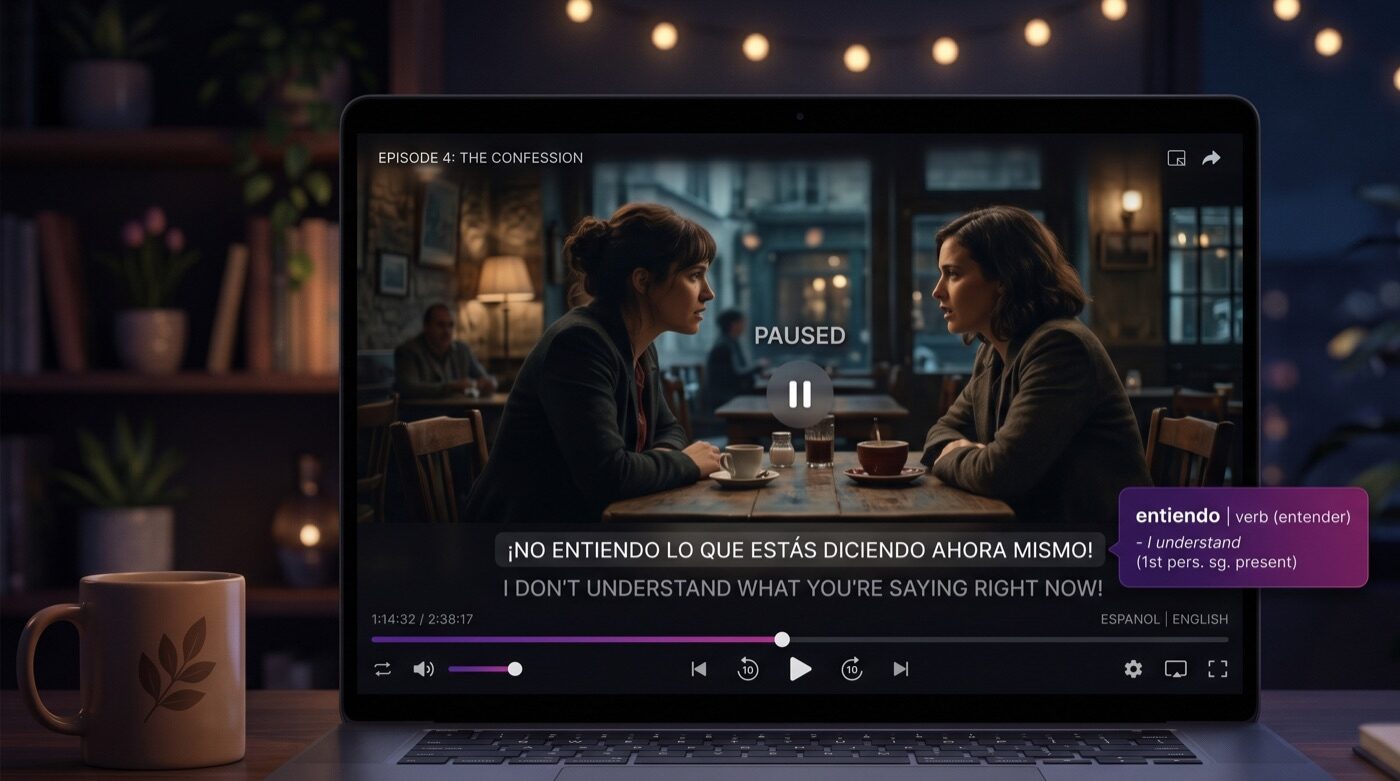
- Dual subtitles put your target language and native language on screen together, so you read the original dialogue and its translation in real time.
- Funlingo sets this up in about 90 seconds and is completely free with no premium tiers or paywalls.
- Dual subtitle extensions work only in the Chrome desktop browser, not the Netflix mobile or smart TV apps.
- Funlingo also works on YouTube and Prime Video, unlike Language Reactor or Trancy.
What Are Netflix Dual Subtitles?
Netflix dual subtitles let you display two subtitle tracks at the same time while watching any show or movie. Your native language appears alongside your target language, so you can follow the dialogue in both languages without pausing or switching back and forth.
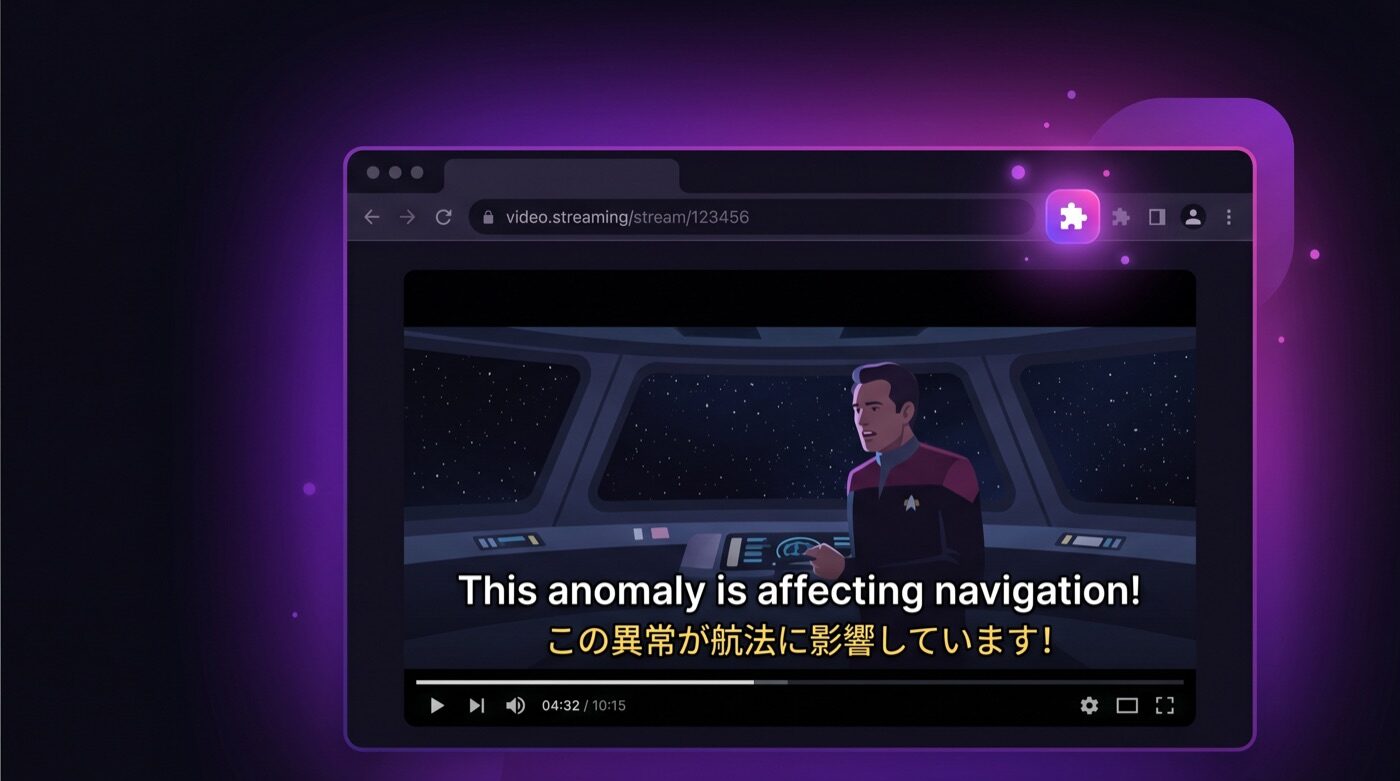
Netflix itself only allows one subtitle track at a time. To get dual subtitles, you need a browser extension that overlays a second subtitle line on top of the Netflix player. The entire setup takes less than two minutes, and in this guide we will walk you through every step.
This is different from simply switching between subtitle languages in Netflix settings. With dual subtitles, both languages are visible simultaneously, which means you can read the original dialogue and its translation in real time.
Why Use Dual Subtitles for Language Learning?
Research on second language acquisition consistently shows that comprehensible input is the most effective way to learn a language. Dual subtitles turn Netflix into a powerful learning tool by making foreign-language dialogue comprehensible even if you are a beginner.
Learn in Context
You see how words and phrases are actually used in real conversations, not in textbook examples. This builds natural, practical vocabulary.
Passive and Active Learning
Even when you are relaxing, your brain is absorbing sentence patterns, grammar structures, and pronunciation cues from the audio.
The key advantage of dual subtitles over single subtitles is immediate reference. When you hear a word you do not recognize, the translation is right there on screen. There is no need to pause, open a dictionary, or break the flow of the show.
For a deeper dive into the methodology behind learning languages through media, read our guide on how to learn a language by watching.
Step-by-Step: Set Up Netflix Dual Subtitles with Funlingo
Follow these five steps to start watching Netflix with dual subtitles today. The entire process takes about 90 seconds.
- 1
Install Funlingo
Add the free extension from the Chrome Web Store. The icon appears in your toolbar.
- 2
Open Netflix in Chrome
Sign in at netflix.com in the Chrome desktop browser, not the app.
- 3
Pick a show and play
Choose a title with subtitles in your target language and start playing.
- 4
Enable and configure
Click the Funlingo icon, toggle dual subtitles on, and set your target and native languages.
Install the Funlingo Extension
Open Chrome and go to the Funlingo Chrome Web Store page. Click "Add to Chrome" and confirm the installation. The Funlingo icon will appear in your browser toolbar. The extension is completely free with no premium tiers or paywalls.
Open Netflix in Chrome
Navigate to netflix.com in your Chrome browser and sign in to your account. Make sure you are using the Chrome desktop browser, not the Netflix desktop app or a mobile device. Dual subtitle extensions only work within the browser.
Pick a Show or Movie
Choose a title that has subtitles available in your target language. Netflix originals like Money Heist, Dark, Squid Game, or Lupin are excellent choices because they have extensive subtitle and audio options in many languages. Start playing the content.
Enable Dual Subtitles
Once the video starts playing, click the Funlingo icon in the Netflix player controls or in your browser toolbar. The extension will detect the available subtitle tracks and display an option to enable dual subtitles. Toggle it on, and you will immediately see two subtitle lines on screen.
Configure Your Languages
In the Funlingo settings panel, select your target language (the language you are learning) and your native language. The target language subtitle will appear on top and your native language on the bottom. You can also adjust font size, subtitle position, and opacity to match your preference.
Troubleshooting Common Issues
Most users get Netflix dual subtitles working on the first try. If something is not right, here are the most common issues and their fixes.
Make sure you have subtitles enabled in the Netflix player itself. Funlingo adds a second subtitle track on top of the one Netflix provides. If Netflix subtitles are turned off, the extension has nothing to work with. Go to the subtitle menu in the Netflix player and select a language.
Check that you have selected two different languages in the Funlingo settings. Also make sure the Netflix title has subtitles available in both of your chosen languages. You can check available languages in the Netflix subtitle menu.
Try refreshing the Netflix page after installing Funlingo. If the issue persists, go to chrome://extensions, make sure Funlingo is enabled, and refresh the page again. In rare cases you may need to restart Chrome entirely.
Open the Funlingo settings and adjust the subtitle position and font size. You can move the secondary subtitle higher or lower on the screen to prevent overlap with the primary subtitle track.
Does Netflix Have Dual Subtitles?
Netflix does not have a built-in dual subtitle feature. The Netflix player only allows one subtitle language at a time. To display two subtitle languages simultaneously, you need a free Chrome extension like Funlingo that overlays a second subtitle track on top of the Netflix player. This works on any Netflix title that offers subtitles in your chosen languages.
Netflix Dual Subtitles on Chrome — Why Chrome Is Required
Dual subtitle extensions work exclusively in the Chrome desktop browser. This is because Chrome extensions can inject an overlay into the Netflix video player — something that isn't possible on the Netflix mobile app, smart TV apps, or other browsers like Safari or Firefox. If you primarily watch on a TV, you can cast from your Chrome browser using a Chromecast or HDMI cable to get dual subtitles on a bigger screen.
Tips for Getting the Most Out of Netflix Dual Subtitles
Simply turning on dual subtitles is a great start, but there are strategies that can significantly accelerate your progress.
Start with shows you already know. Rewatching a favorite show in your target language removes the cognitive load of following a new plot, letting you focus entirely on the language.
Focus on the target language first. Train yourself to read the target language subtitle before glancing at the translation. Over time, you will find yourself needing the translation less and less.
Use the vocabulary builder. Funlingo lets you save words and phrases while watching. Tap on any word in the subtitle to see its meaning and save it for later review.
Watch 20 to 30 minutes daily. Consistency matters more than marathon sessions. A short daily viewing habit builds lasting vocabulary and listening skills over weeks and months.
Choose content at your level. If you are a beginner, animated shows and children's content use simpler language. Intermediate learners should try dramas and comedies with everyday dialogue.
Try learning Spanish on Netflix. Spanish content is one of the most popular choices for dual subtitle learning. See our guide on how to learn Spanish on Netflix for show recommendations by level.
For more strategies on building vocabulary while watching, check out our detailed guide on building vocabulary through shows.
Other Extensions That Offer Netflix Dual Subtitles
Funlingo is not the only option for Netflix dual subtitles. Here is how the main alternatives compare.
Language Reactor
Formerly known as Language Learning with Netflix. Offers dual subtitles and a pop-up dictionary. The free version covers basic dual subtitles, but vocabulary saving and advanced features require a paid plan at around $6 per month. For a detailed comparison, see our Language Reactor vs Trancy guide.
Trancy
An AI-powered option with sentence analysis and grammar breakdowns. Supports Netflix and YouTube but not Prime Video. The full feature set requires a subscription at approximately $8 per month. For a detailed look at Trancy's AI conversation feature, see our AiTalk review.
Substital
Lets you load custom SRT subtitle files onto Netflix. Good if you have your own subtitle files, but requires more manual setup and does not include vocabulary tools or integrated language learning features.
For a comprehensive comparison, see our full guide on the best dual subtitle extensions.
For a full comparison of all the extensions mentioned above, read our complete guide to Netflix language learning extensions.
Frequently Asked Questions
Netflix does not offer dual subtitles as a built-in feature. However, free extensions like Funlingo let you add dual subtitles at no extra cost. You just need an active Netflix subscription and the Chrome browser.
Dual subtitles work on any Netflix title that has subtitles available in your two chosen languages. Netflix originals tend to have the widest language support, often with 10 or more subtitle options. Third-party licensed content may have fewer language options.
No. Dual subtitle extensions are Chrome browser add-ons and only work on desktop. The Netflix mobile app and tablet app do not support browser extensions. To use dual subtitles, watch Netflix through the Chrome browser on your computer.
No. Funlingo is lightweight and does not affect video playback performance. The extension simply adds a second text overlay on top of the existing video player without modifying the video stream itself.
Yes. Funlingo allows you to customize font size, subtitle position, and opacity for both subtitle tracks. You can adjust these settings through the extension panel while watching.